
Search visibility
See where a client appears on Google and in AI answers, who they compete with, and turn the gaps into tasks.
What it does
Search visibility answers three questions for each client without leaving WordPress: where does their website appear on Google for the searches that matter, who else appears there, and do AI tools such as ChatGPT, Gemini and Perplexity name them when someone asks a question. The answers sit on the client’s Search tab, on the tasks they relate to, and in the monthly report.
It is a Premium feature. Findings are internal until you choose to share them: nothing reaches the client unless it appears in a published report or on their Tracked Keywords page.
Connect it once
- An administrator opens Settings > Integrations and saves the agency’s search data login. One login serves every client.
- Optional: set usage limits on the same screen: one for the whole agency and a default for each client. A client can have its own limit, and a blank limit means no limit.
- Optional: switch on the sample-data setting while you are learning. It returns example results and is never counted against a limit.
Every request is recorded against the client and task. A request that would take you over a limit is refused before it runs, so a long keyword list cannot surprise you.
Set up a client
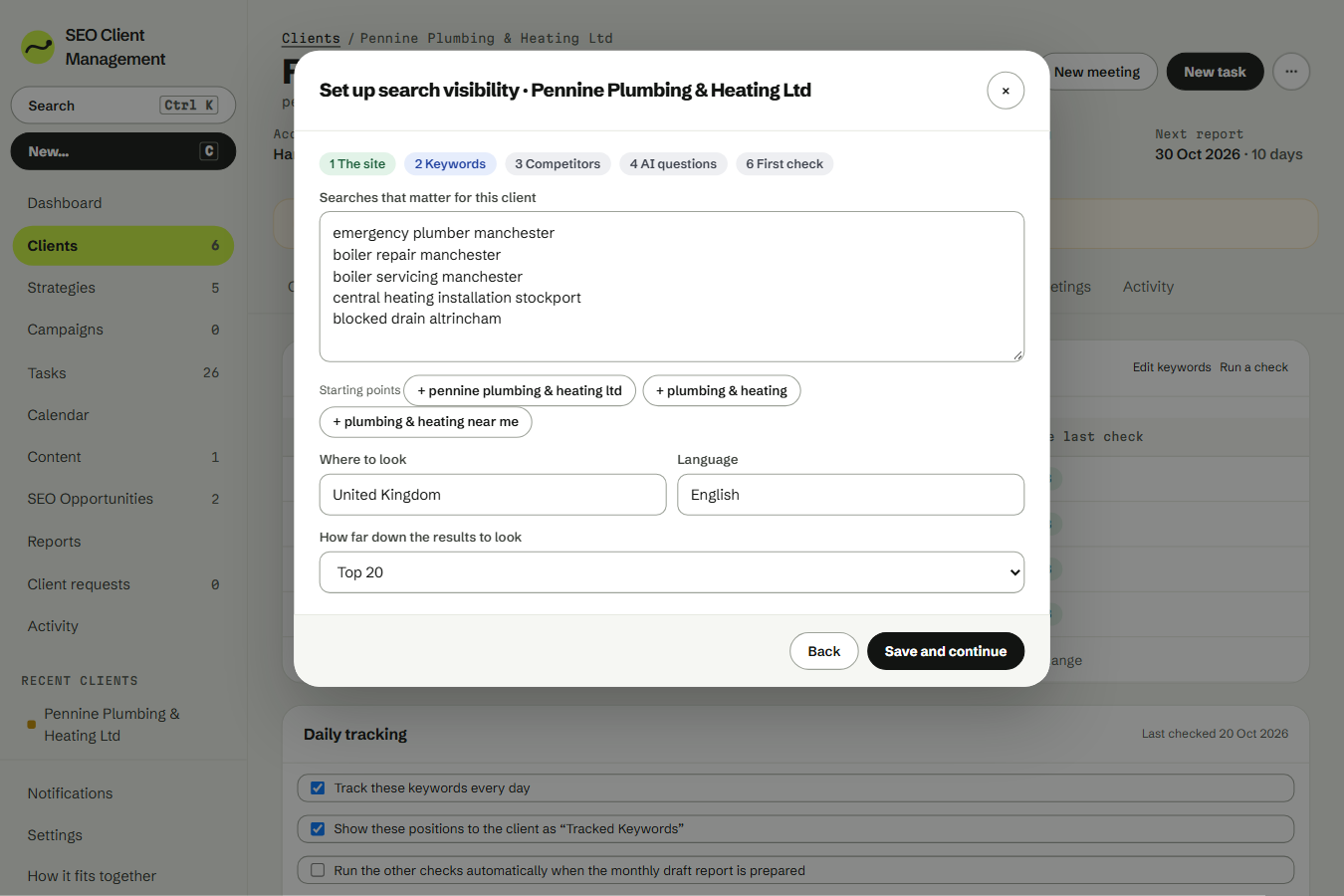
On a client’s page, open the Search tab and choose Set up search visibility. The wizard walks through:
- The site, location and language to check from.
- Keywords to track, up to 40. Starting suggestions come from the client’s name and industry; you approve the list. You can edit it at any time, and a keyword you remove only stops being tracked, so its history is kept.
- Competitors (see below).
- AI questions, optional (see below).
- A usage limit for this client, if you want one.
- A first check, which becomes the starting point every later check is compared with.
Check Google rankings
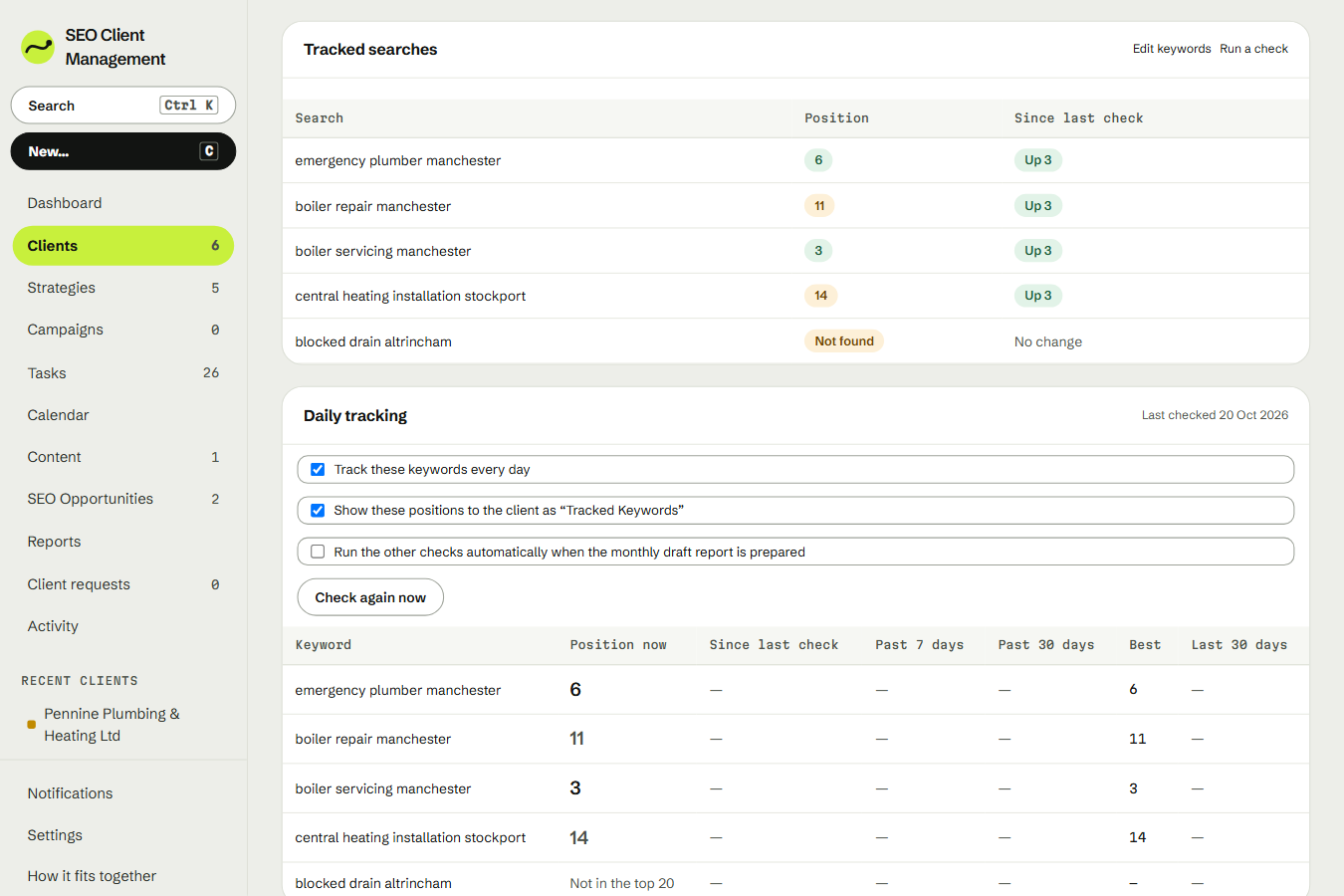
Choose Run a check on the Search tab, or use the search panel on any task. Pick the keywords, location, language and how deep to look, then run it. Each keyword is looked up one at a time, so a long run can be resumed, and it stops cleanly with the reason if a limit is reached.
The findings show each keyword’s position, whether the client’s website was found, and how it moved since the last check: up, down, new or dropped out. For keywords that are not on page one, Create subtasks turns each into a task once, so the gaps become work.
Competitors
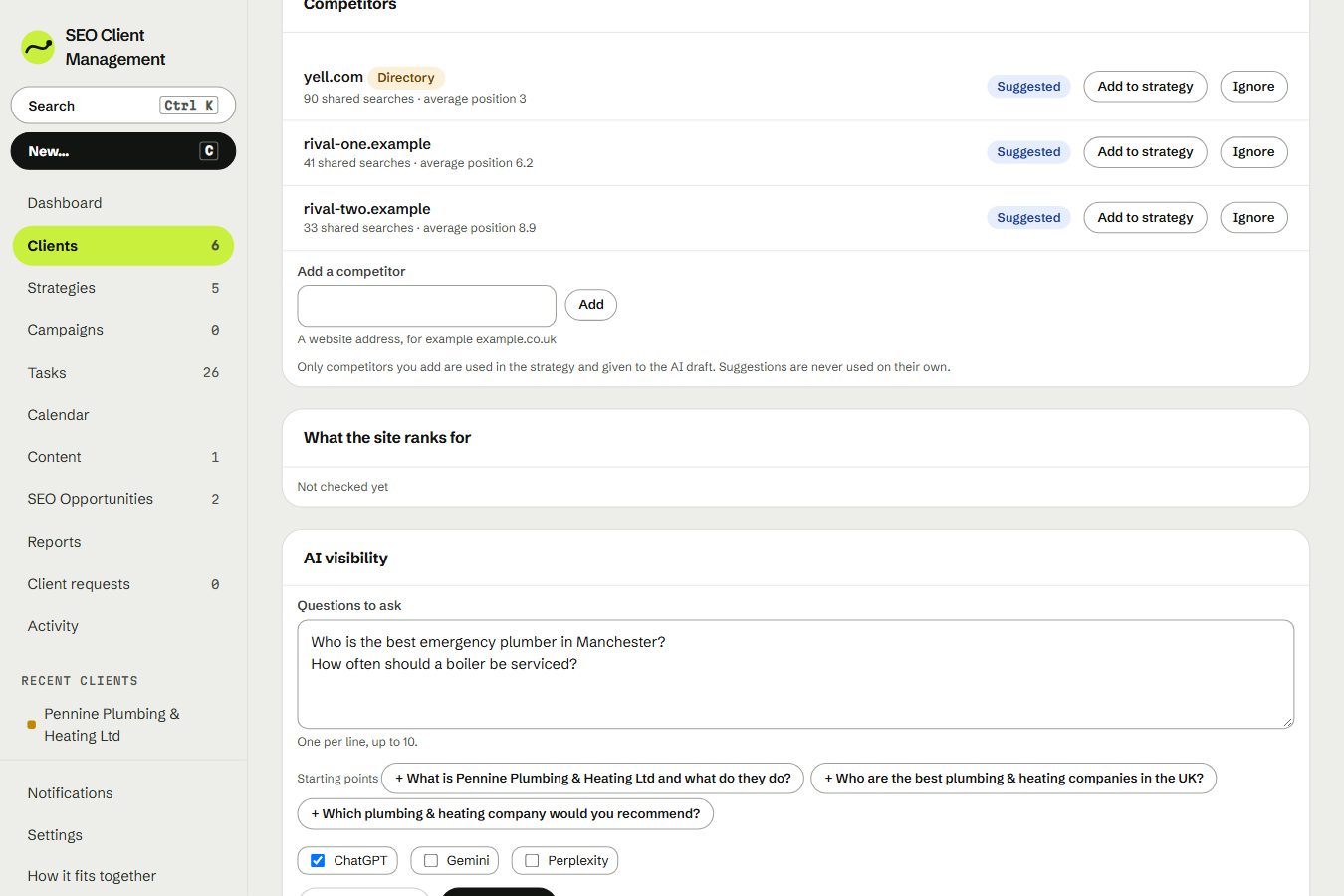
SEO Ops suggests who competes for the same searches, and flags directories and similar sites that are not real competitors. You add or ignore each suggestion, or add one by hand. Only competitors you have added are used: they feed the monthly report and the AI strategy drafts, and a suggestion is never used until you say so.
What the site already ranks for
A separate check lists the searches the website already appears for, with their monthly search volume, and picks out the ones in positions 11 to 20. Those are the closest wins: pages that are nearly on page one.
AI visibility
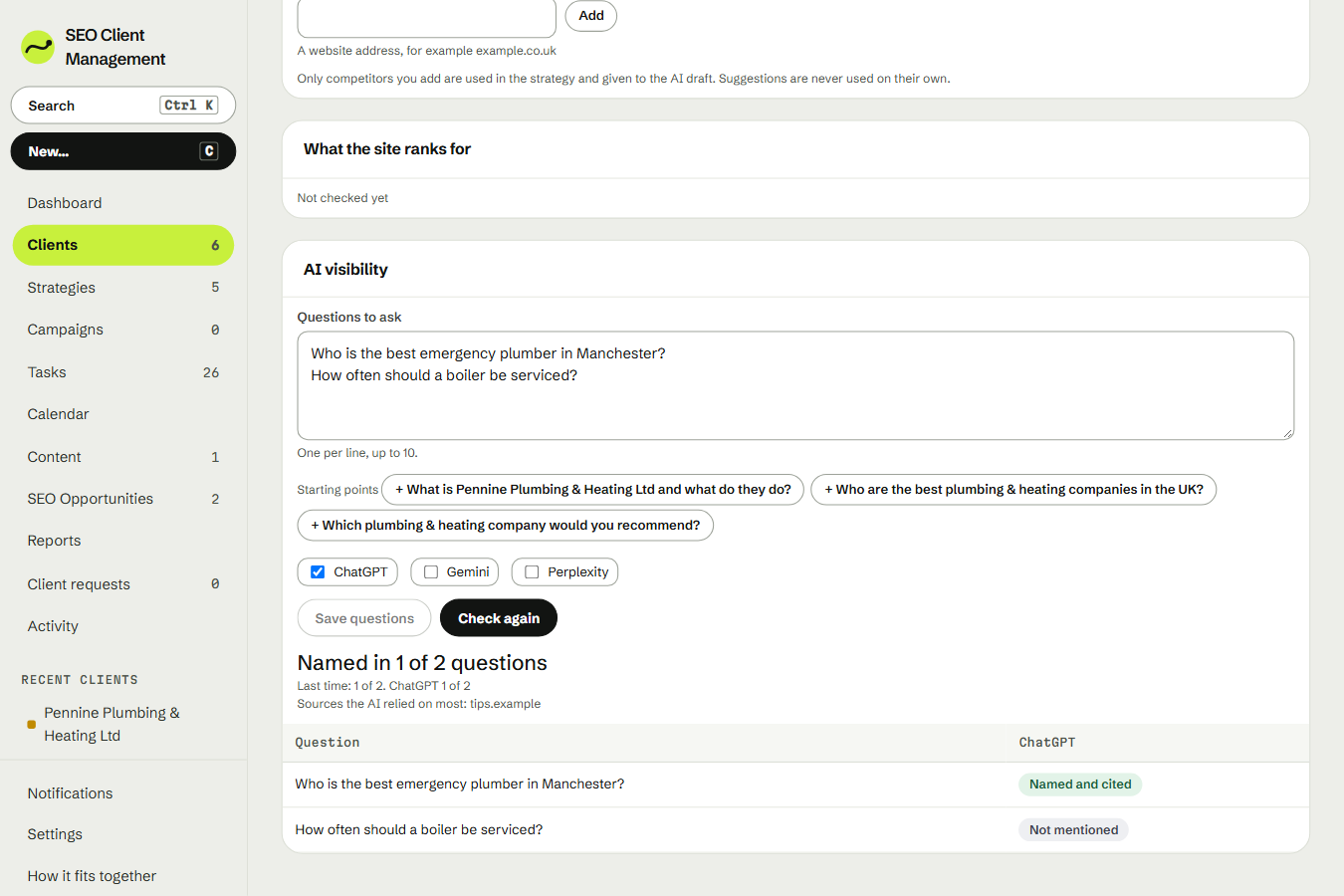
Write up to ten questions a customer might ask an AI tool, such as “Who is the best emergency plumber in Leeds?”, and choose the platforms. The check records, for each answer, whether the client is named, cited as a source, or not mentioned, and what changed since last time. Competitors you added are looked for in the same answers. Use Save questions to keep your list without running a check; it also saves when you click out of the box.
In the monthly report
Three sections are written for you in plain language from the checks run in the report’s period: Where customers find you on Google, Are you recommended by AI tools? and Who you compete with. A section with nothing in it is left out of the client’s report. The full text of AI answers, sources and competitors found above the client are never shown, and an older check is never passed off as this month’s. See Generating reports.
Common questions
Can the client see these results?
Only what reaches a published report, and the positions on the Tracked Keywords page if you switch that on. Competitors and notes stay internal.
Is it in the Free plan?
No. It is part of Premium. See Free vs Premium.
Can I check a client every day?
Yes, see Tracked keywords.