
Creating a strategy
Write the strategy once, then turn it into work you can trace back to it.
Create a strategy
- 1Open the client, go to the Strategy tab, and choose Create Strategy (or use New Strategy from the quick actions).
- 2Write the executive summary: the current situation, the main problems and opportunities, and the business and SEO objectives.
- 3Describe the current state: traffic, visibility, rankings, technical condition, content, links, competitors and AI visibility.
Objectives
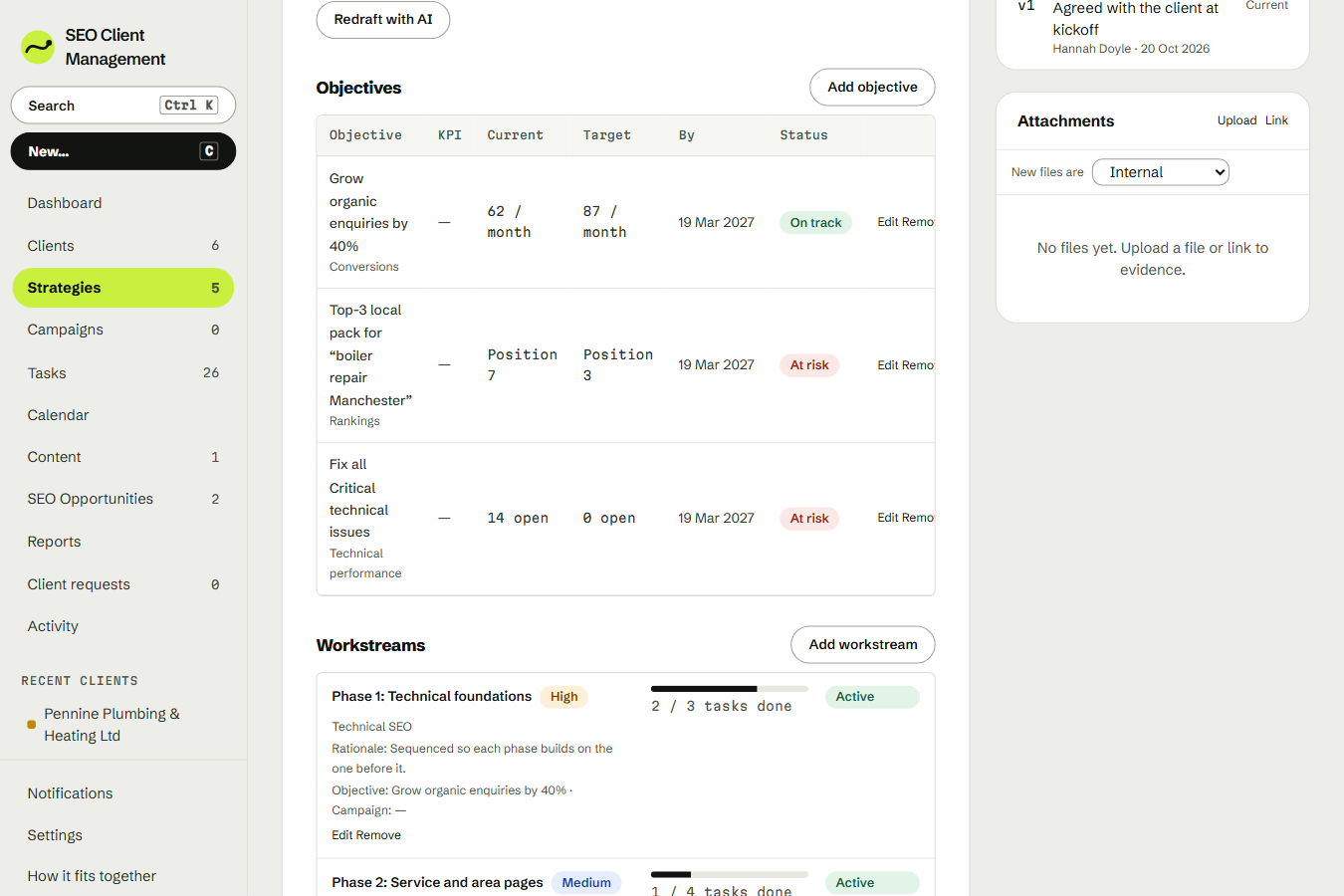
Each objective has a description, KPI, target, current value, target date and status, such as increasing qualified organic traffic or improving rankings for commercial terms.
Workstreams
Break the strategy into workstreams, for example Technical SEO, Content, Digital PR, Link Building, Local SEO, Internal Linking, Keyword Strategy or LLM/GEO visibility. Each workstream has an objective, a rationale, a priority, KPIs and a status.
Versions and comments
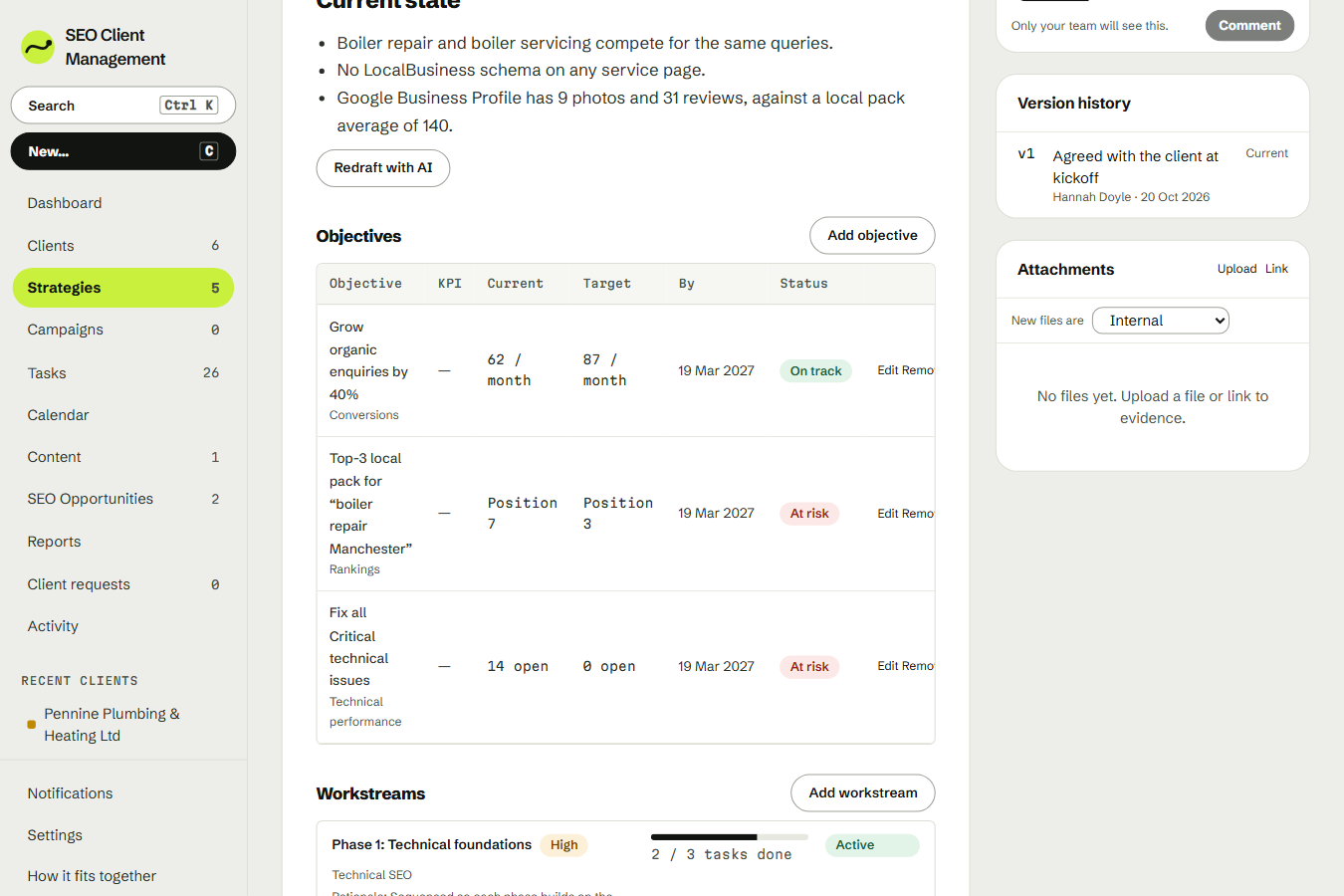
A strategy is an editable document, not a form. Edits are saved as versions, so you can see who changed it and when and look at earlier versions. Comments can be marked Internal or Client-visible.
From strategy to tasks
Tasks created from a strategy keep the link back to it, so you can always answer why a task exists. See Creating tasks.
AI can suggest tasks from a strategy and summarise it. You review every suggestion before anything is created. Set up a provider under Configuring integrations.
The sections of a strategy
A strategy is written in sections, with an outline down the side on wide screens so you can jump between them:
- Executive summary: the situation, the main problems and opportunities.
- Current state: where the site stands today.
- Objectives: the outcomes, each with a KPI, target and date.
- Workstreams: the strands of work that deliver them.
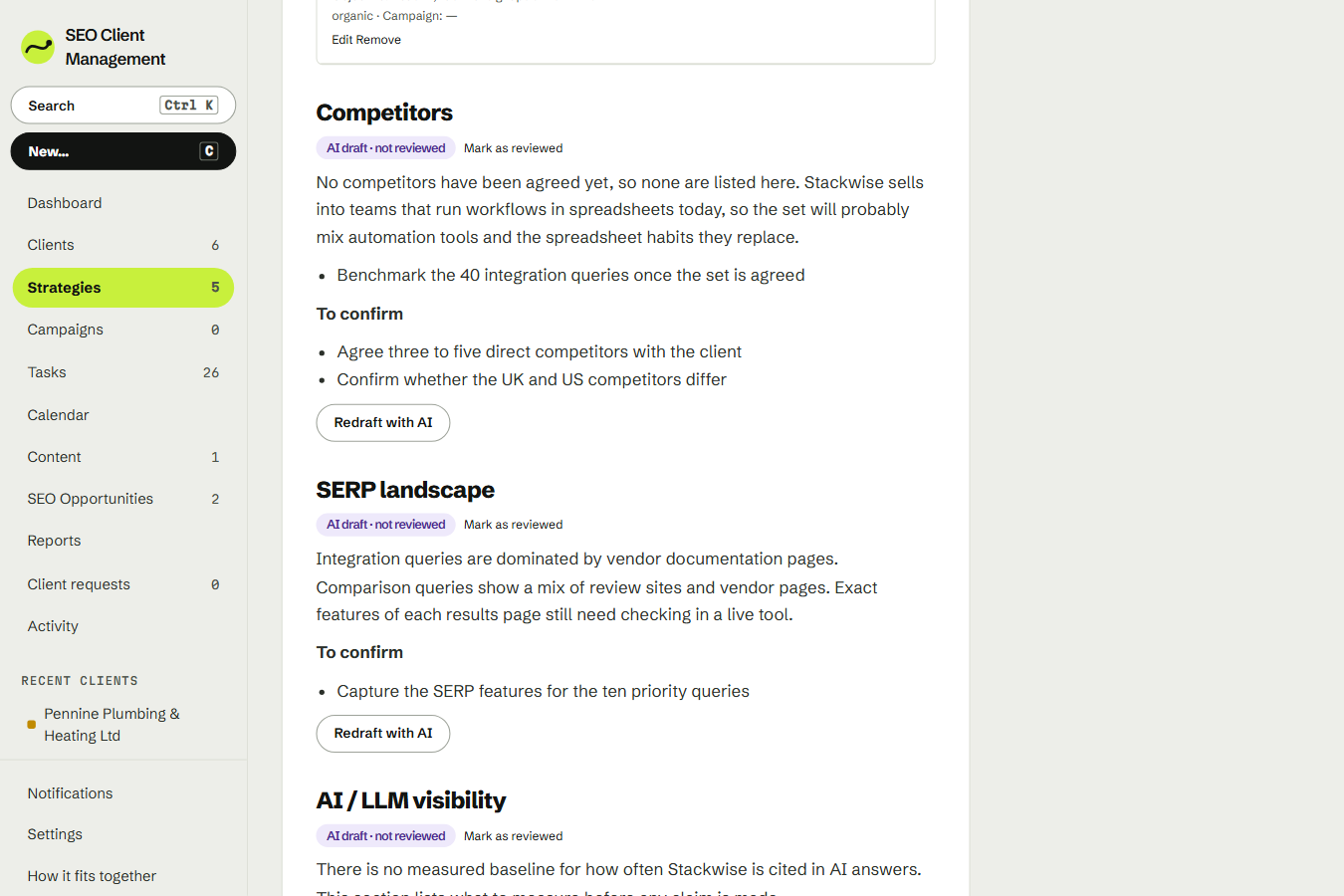
- Competitors: who you are measured against.
- SERP landscape and AI / LLM visibility: what the results pages look like and how the brand appears in AI answers.
You do not have to fill every section. Write the ones that help this client.
Start from a playbook
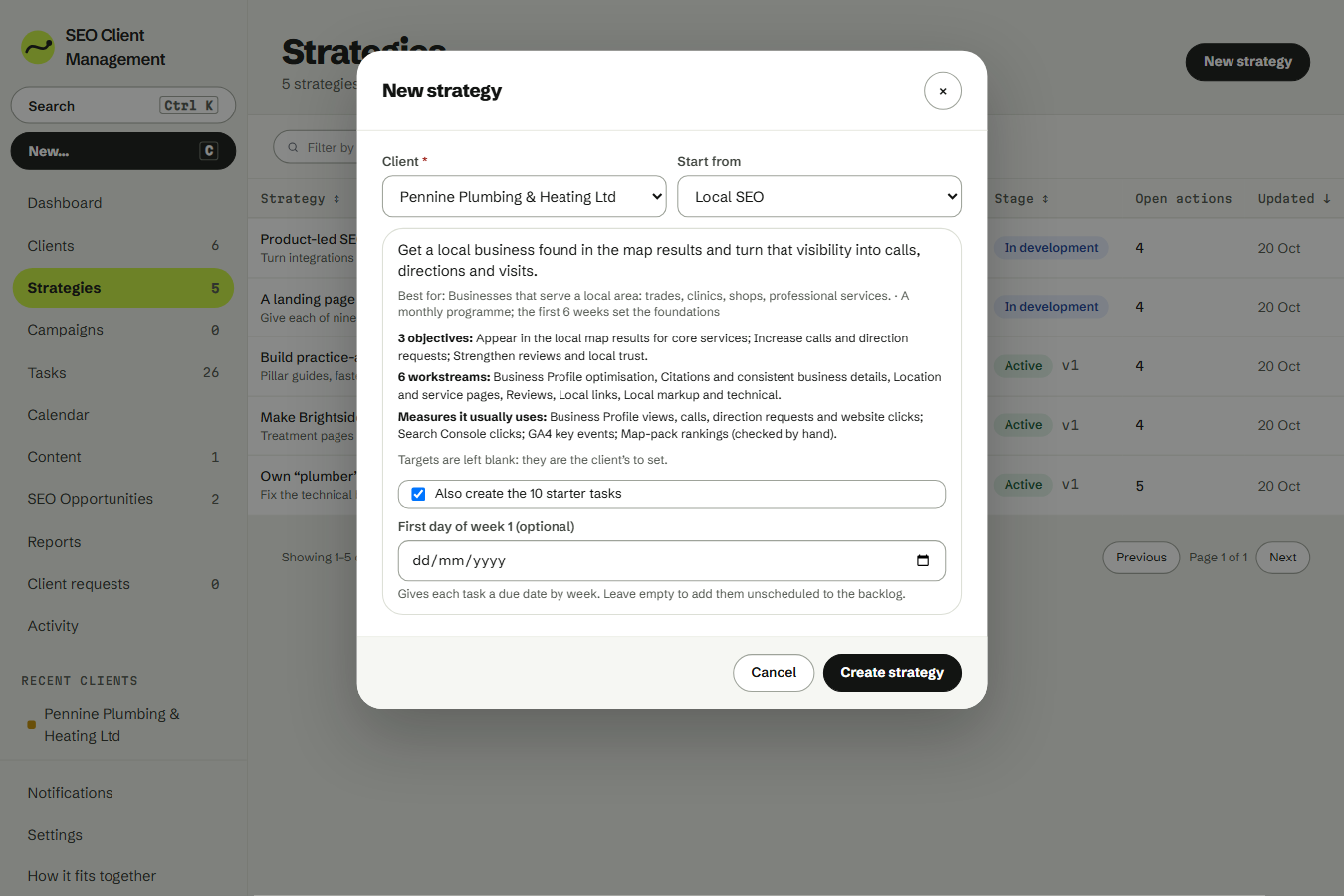
If the engagement looks like a technical audit, a content-led site, local SEO or an online shop, a playbook gives you a draft with objectives, workstreams and starter tasks. It is only a draft, with targets left blank for you to fill in.
Drafting sections with AI (Premium)
With a connected provider, each section has a Draft with AI button (Redraft with AI once it has text). The draft is written from the client’s recorded data, shown to you for review, and only written into the section when you choose Write into section. It is then marked AI draft, not reviewed until you edit it or choose Mark as reviewed, and an unreviewed draft blocks publishing. Sections are drafted one at a time, so each request is short.
Nothing is sent to an AI provider unless someone presses an AI button.
Keep it internal, then share it
A new strategy is a working draft. Nothing is visible to the client until you publish a version, and even then the portal shows only the sections and objectives marked visible to client. Use Publish version when you want a saved, dated version. Internal comments stay internal; mark a comment Client-visible only when it is meant for them.
Versions, comments and files
The page keeps a version history, so you can see who changed what and look back at an earlier version. The comments panel supports Internal and Client-visible comments, and the attachments panel lets you add evidence, such as a ranking export or a screenshot.
Common questions
Do I need objectives before I create tasks?
No, but tasks linked to an objective or workstream can always answer “why does this task exist?”. That is the point of linking them.
Can I delete a strategy?
Yes. There is a Delete button on the strategy page, with a confirmation.