
Activating your licence
Switch Premium on for a site with the licence key from your purchase.
Before you start
- You need an administrator login on the WordPress site.
- SEO Ops 1.3.0 or newer must be installed. The Licence screen does not exist in older versions, so download the latest plugin and update first.
- You need your licence key. It is in your purchase email and on your order page.
Activate the key
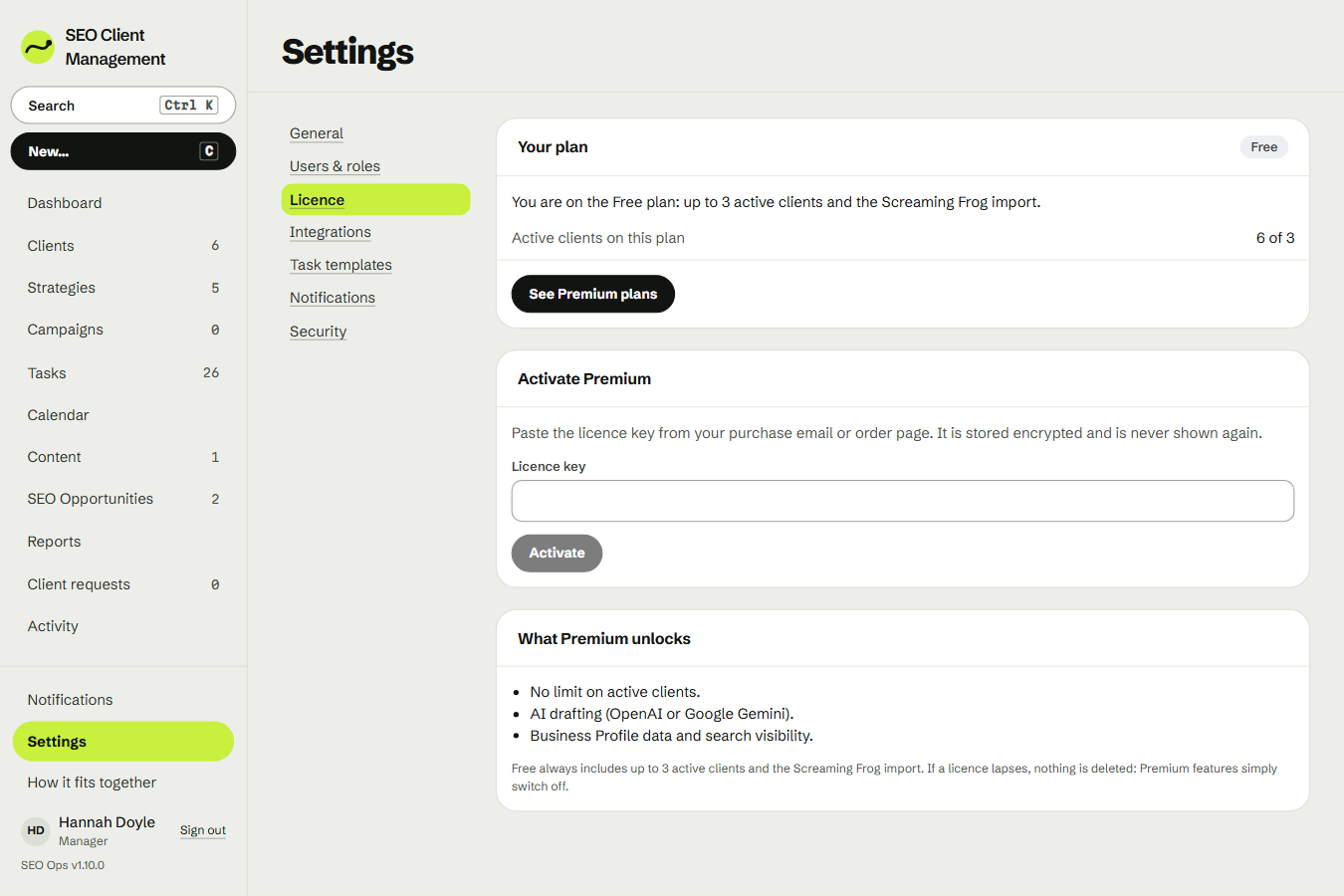
- 1In WordPress, open SEO Ops › Settings › Licence.
- 2Paste the key into Licence key.
- 3Click Activate.
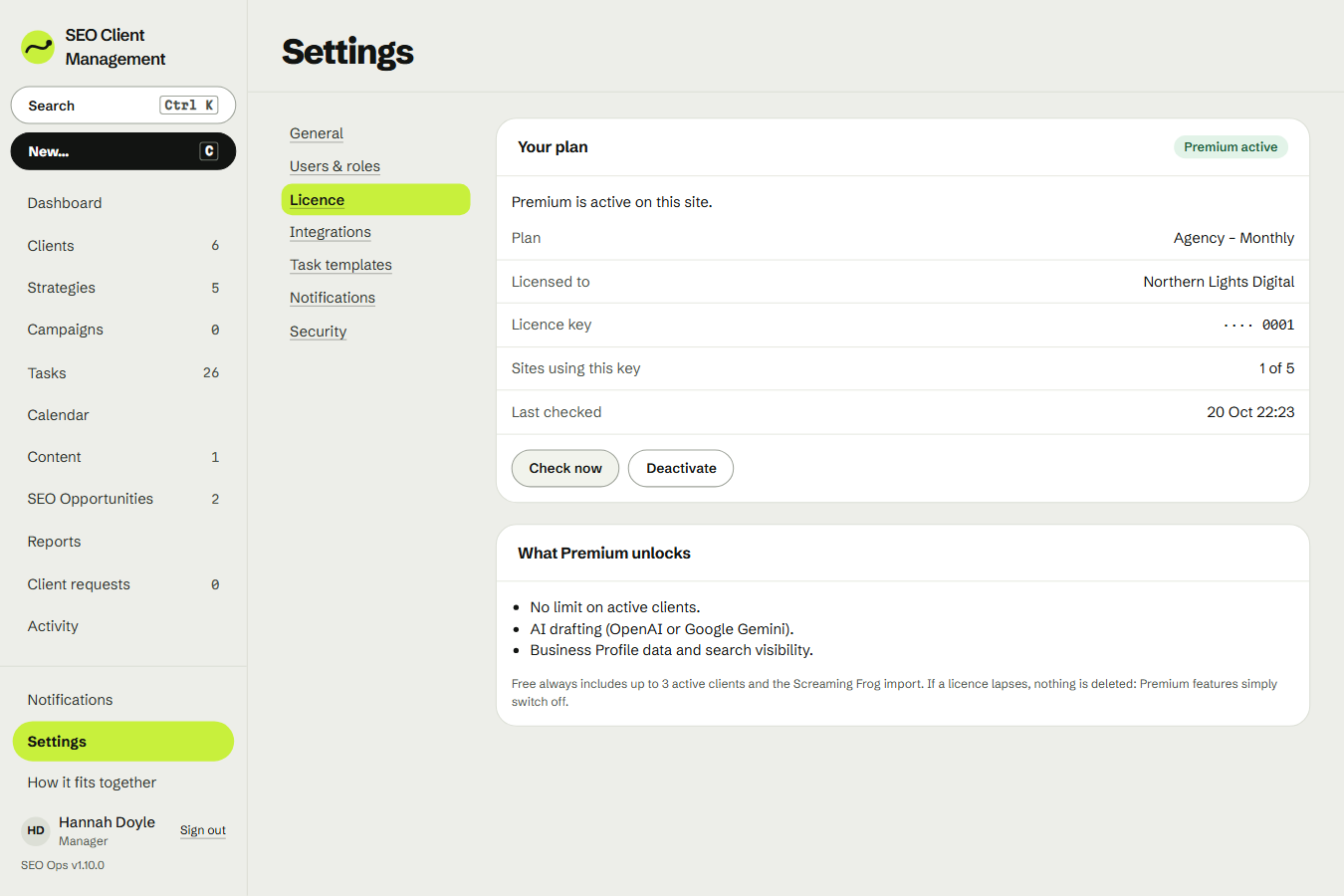
- 4The screen changes to Premium active and shows your plan, who it is licensed to and how many sites are using the key.
Premium switches on straight away: no limit on active clients, AI drafting, search visibility, and the Business Profile connection. The key is stored encrypted and is never shown again, only its last four characters.
How many sites a key covers
- Solo: 1 site.
- Agency: up to 5 sites.
- Unlimited: any number of sites.
Each site you activate the key on uses one place. The Licence screen shows how many are used.
Moving a licence to another site
- 1On the old site, open SEO Ops › Settings › Licence and click Deactivate. This frees the place.
- 2On the new site, activate the same key as above.
If the old site is no longer reachable, you can free the place from your order page, or contact us.
If something goes wrong
- "The license key was not found": check you copied the whole key, with no spaces.
- "Reached the activation limit": deactivate it on a site you no longer use, or choose a larger size.
- "That key is not for SEO Ops Premium": the key belongs to a different product.
- "Could not reach the licence service": try again in a minute. If a working licence cannot be checked, Premium stays on for up to 7 days.
- "Activated for a different site address": the site’s address changed or it was copied. Activate the key again on this site.
- Expired: renew your subscription. Premium switches off, but nothing is deleted.
Without a licence
SEO Ops stays on the Free plan: up to 3 active clients and the Screaming Frog import. Your data is never deleted when a licence ends.
Not bought Premium yet? See the pricing.
How the licence is checked
- When you activate. The key is verified with the licence service, and it is only accepted if it was issued for this product. A key bought anywhere else cannot unlock Premium.
- Every day. The site re-checks the licence in the background.
- If the service is unreachable. The last good check is trusted for up to 7 days, so a short outage never switches Premium off.
- If the licence is expired, disabled or invalid. Premium switches off straight away. Nothing is deleted.
- If the site address changes. A copy of the database on a different address is not licensed until the key is activated there.
What the Licence screen shows
After activation you see the plan, who it is licensed to, how many sites are using the key, and when the licence was last checked. You also have buttons to re-check the licence and to Deactivate the key on this site, which frees its place.
Your key is kept safe
The key is stored encrypted and is never shown again. The screen shows only its last four characters. Only administrators can open the Licence screen.
Common questions
Where do I find my key?
In your purchase email and on your order page. If you cannot find either, contact us with the email you bought with.
Do I need to activate on every site?
Each WordPress site running SEO Ops that should be Premium needs the key activated on it, up to the number of sites in your plan.
What happens to Premium features when it switches off?
AI drafting and the connected data sources stop, and you cannot add new active clients beyond the Free limit. Everything already there stays. See Client statuses and the Free limit.