
Setting up the client portal
Give clients visibility without giving them your internal workspace.
Create client logins
- 1Open Settings › Users & roles.
- 2Add a user with the Client role and link them to their client organisation.
- 3Send them the portal address:
/portalon your site.
What clients see
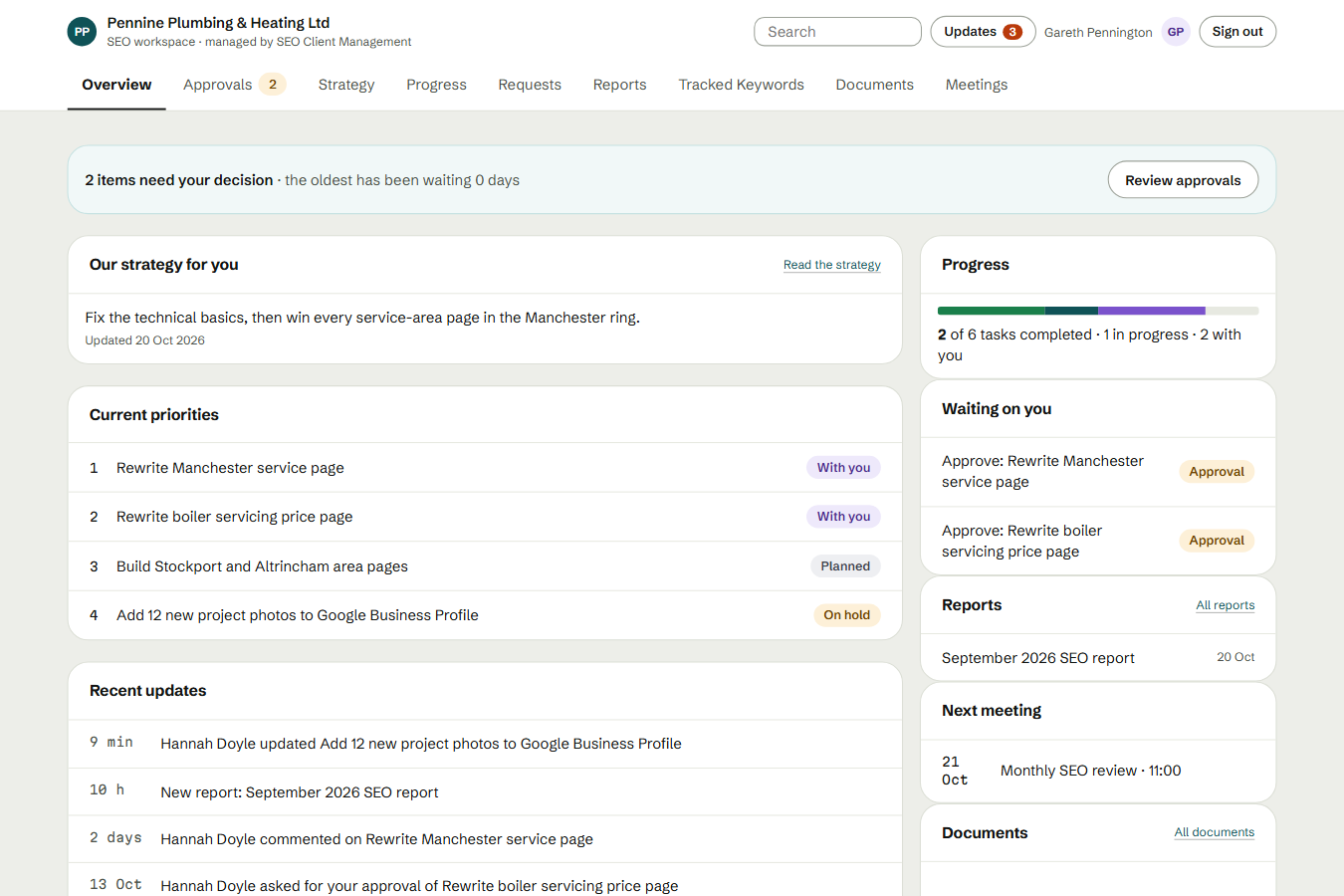
- An overview and progress.
- The current strategy and priorities.
- Tasks that need their action or approval.
- Reports, documents and meetings.
- Comments you mark as client-visible.
What stays private
- Internal notes and internal comments.
- Draft strategy sections and unreviewed AI drafts.
- Other clients, and your internal financial information.
Approvals
When a task is set to Client Review, the client sees what needs approval, why it is recommended, what will happen and any evidence. They can Approve, Request changes, Reject or comment. Who decided, when, and the decision are saved permanently in the activity history.
Each client user can only see their own organisation’s data. This is enforced on the server, not only hidden in the interface.
Look before you invite
On the client page, choose More actions then Preview client portal. It opens the real portal for that client, read-only, in a new tab, with an Exit preview banner. It is the easiest way to check that the strategy, tasks and reports the client will see are the ones you meant to share.
What is in the portal
| Tab | What the client sees |
|---|---|
| Overview | The current strategy summary, priorities, progress, what is waiting on them, and recent reports. |
| Approvals | Requests waiting for a decision, with a record of past decisions. See Approvals. |
| Strategy | The published strategy, with only the sections and objectives you marked visible to client. |
| Progress | Tasks you shared, with status and, if late, a reason. |
| Requests | Where they ask for work. See Client requests. |
| Reports | Published reports. |
| Tracked Keywords | Where their website appears on Google for each keyword you track, with movement and a 30-day trend. It only appears if you switch it on for the client. See Tracked keywords. |
| Documents and Meetings | Files and meeting notes you shared. |
They also get notifications and a search box, limited to their own organisation’s shared information.
What you control
- Tasks: internal until you share them.
- Comments: internal or client-visible, per comment.
- Strategy: a working draft is never visible; sections and objectives are marked visible one by one.
- Reports: only published reports appear.
- Files: choose visibility per file. Evidence on an approval is always shown to the client. Images appear as a thumbnail that opens the full picture; other files show as a badge and a download link.
Privacy is enforced, not decorated
Each client user can only see their own organisation’s data. The server enforces it on every request, so editing an address in the browser does not reveal another client’s information. See Roles and permissions.
Next: invite someone
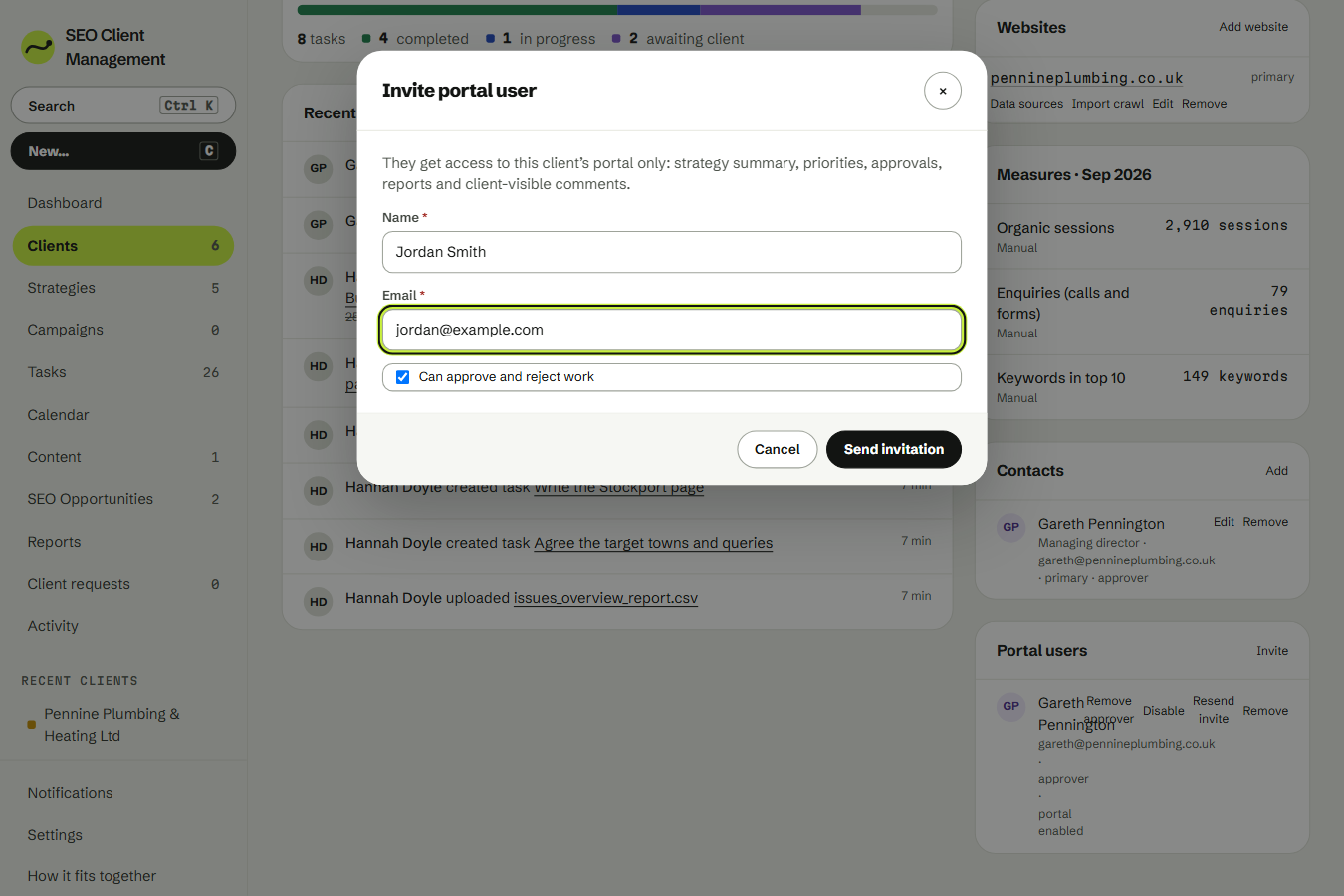
The invitation, resending and removing access are covered in Inviting portal users.
Common questions
Does the portal match my brand?
The sign-in and set-password screens show your agency name and, if your theme has one, your logo. A theme with its own sign-in design can switch the plugin’s portal look off with the seoops_portal_login_brand filter.
Can clients use it on a phone?
Yes. The portal is responsive and works on phones and tablets.