
Creating tasks
Create work quickly, keep it connected, and see it the way you prefer.
Create a task
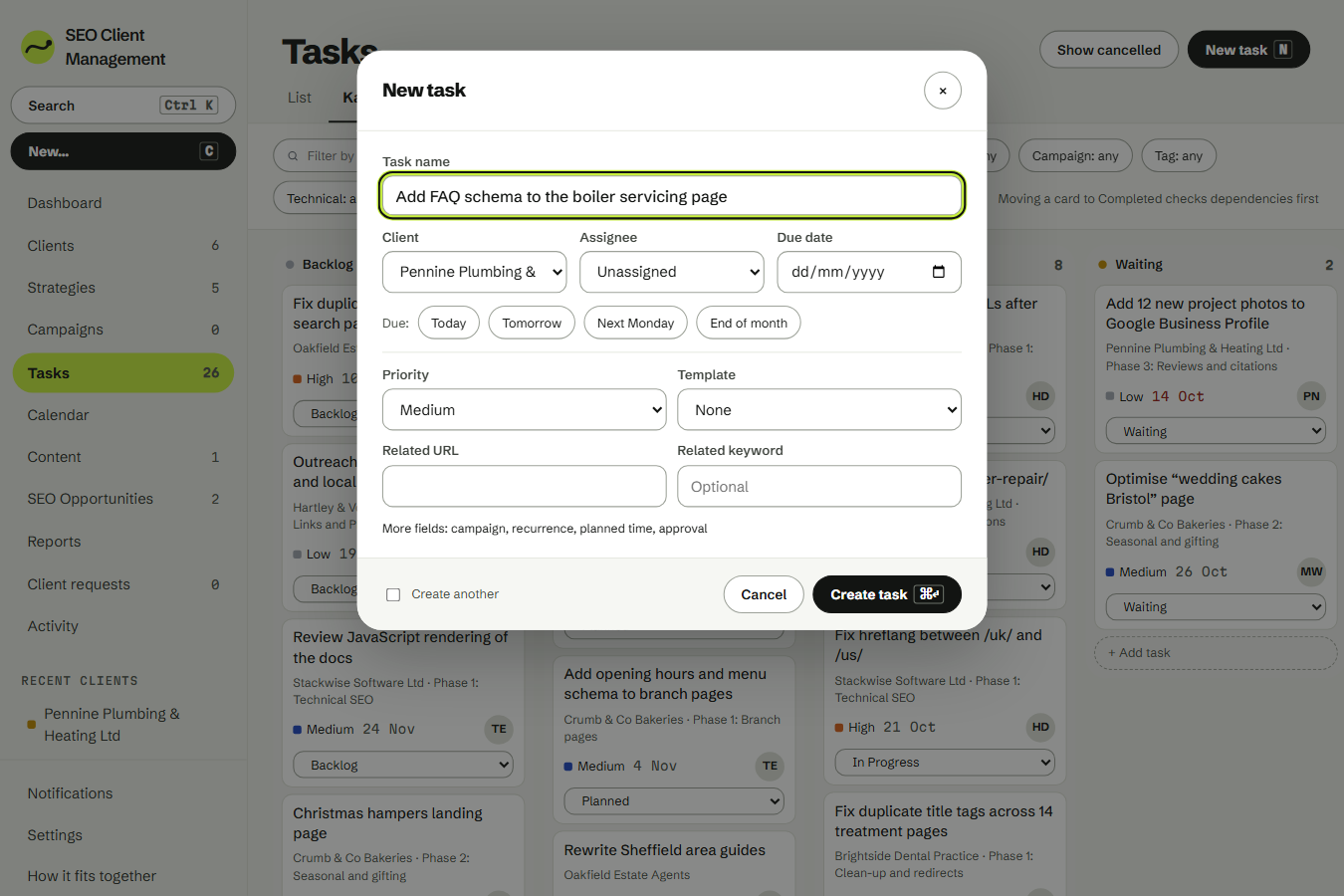
Use New Task from anywhere. The minimum is a name, a client, an assignee and a due date. Everything else can be added afterwards: description, reason, expected outcome, priority, strategy, campaign, workstream, related URL and keyword, estimates and tags.
Statuses and priorities
- Statuses: Backlog, Planned, In Progress, Waiting, Client Review, Approved, Completed, Cancelled.
- Priorities: Critical, High, Medium, Low.
Subtasks, dependencies and recurring work
- Subtasks break a task down, and the parent shows progress from its subtasks.
- Dependencies stop a task being completed while the work it depends on is unfinished, unless you override it.
- Recurring tasks repeat weekly, monthly, quarterly or on a custom schedule, and the next one is created when the current one is completed.
- Templates such as a technical audit or monthly review create real tasks and subtasks. Manage them under Settings › Task templates.
Views and filters
See tasks as a list, a kanban board by status, or a calendar by deadline. Filter by client, assignee, status, priority, due date, campaign, strategy, workstream or tag. My Tasks shows only your own.
Where tasks come from
Besides creating them by hand, you can convert an opportunity or a meeting action into a task, and import a crawl. The task keeps a link to where it came from.
What makes a good task
A task that says only “fix titles” leaves everyone guessing. SEO Ops gives you the fields to say more without making you fill them all:
- Name: an action a person can finish, such as “Rewrite the title tags on the five service pages”.
- Reason and expected outcome: why it matters and what should change, so whoever picks it up does not have to ask.
- Links: the strategy, workstream or campaign it serves, a related URL or keyword.
- Estimate and time: use Log time on the task if you track effort.
- Needs client approval: tick it for work the client must sign off. See Approvals.
Internal first, shared on purpose
Every task is internal until you share it. A shared task appears in the client’s portal on the Progress page, along with any overdue reason. Comments are internal or client-visible, and you choose per comment.
Go further
Common questions
What is the quickest way to add a task?
Use New task from anywhere in the app. The minimum is a name, a client, an assignee and a due date.
Can a client create tasks?
No, but they can send a request from the portal, and you decide whether it becomes a task. See Client requests.
Can I stop a task being completed too early?
Yes. Add a dependency, or require subtasks to be complete first. Both are covered in Subtasks, dependencies and recurring tasks.