
Getting started
What SEO Ops is, where it lives in WordPress, and the order to work in.
What SEO Ops does
SEO Ops keeps your clients, their websites, SEO strategies, campaigns, tasks, approvals, reports and a client portal in one place, inside the WordPress site you already run. It is built around how an SEO team works: client, then strategy, then campaign, then task, then evidence and reporting.
Where to find it
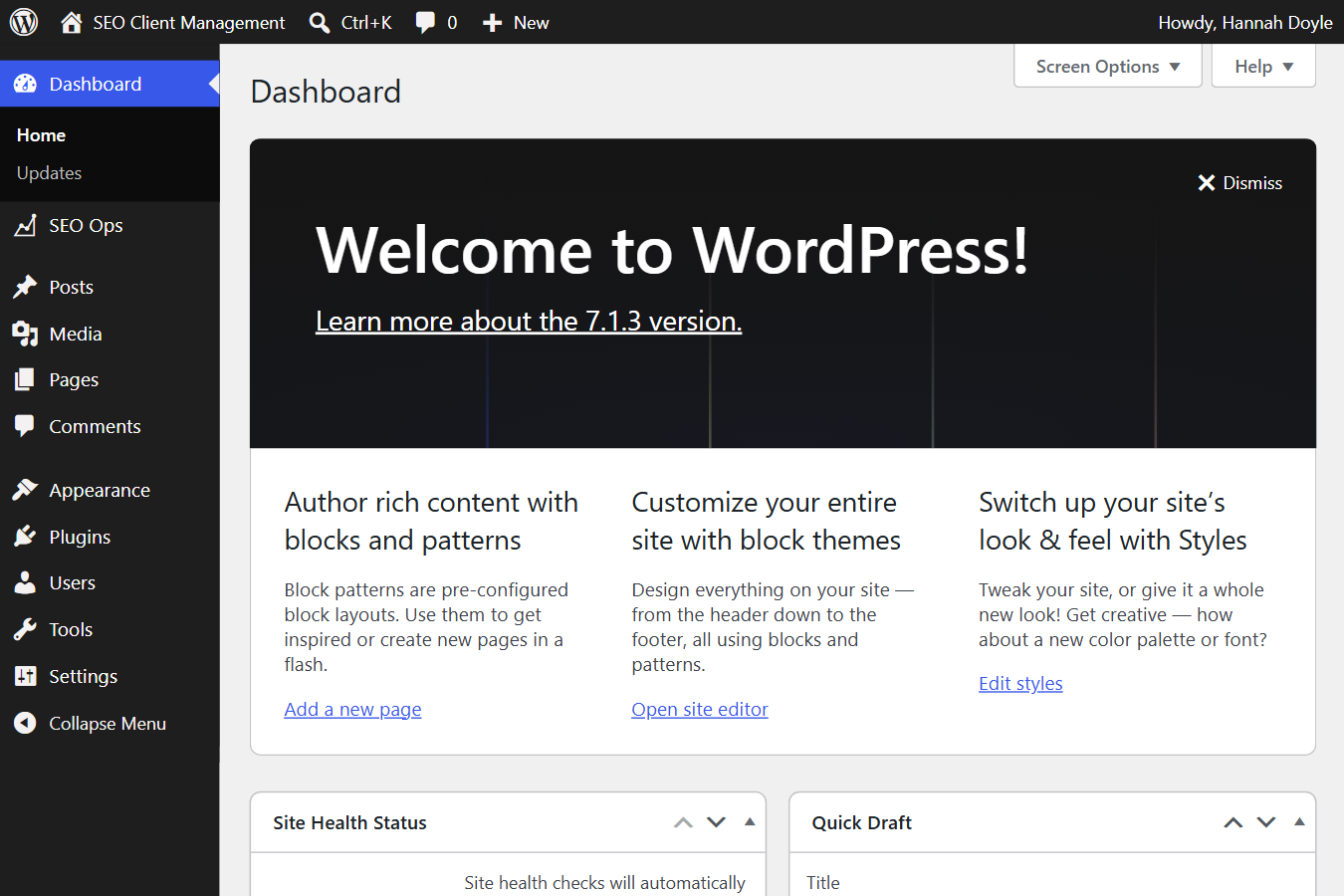
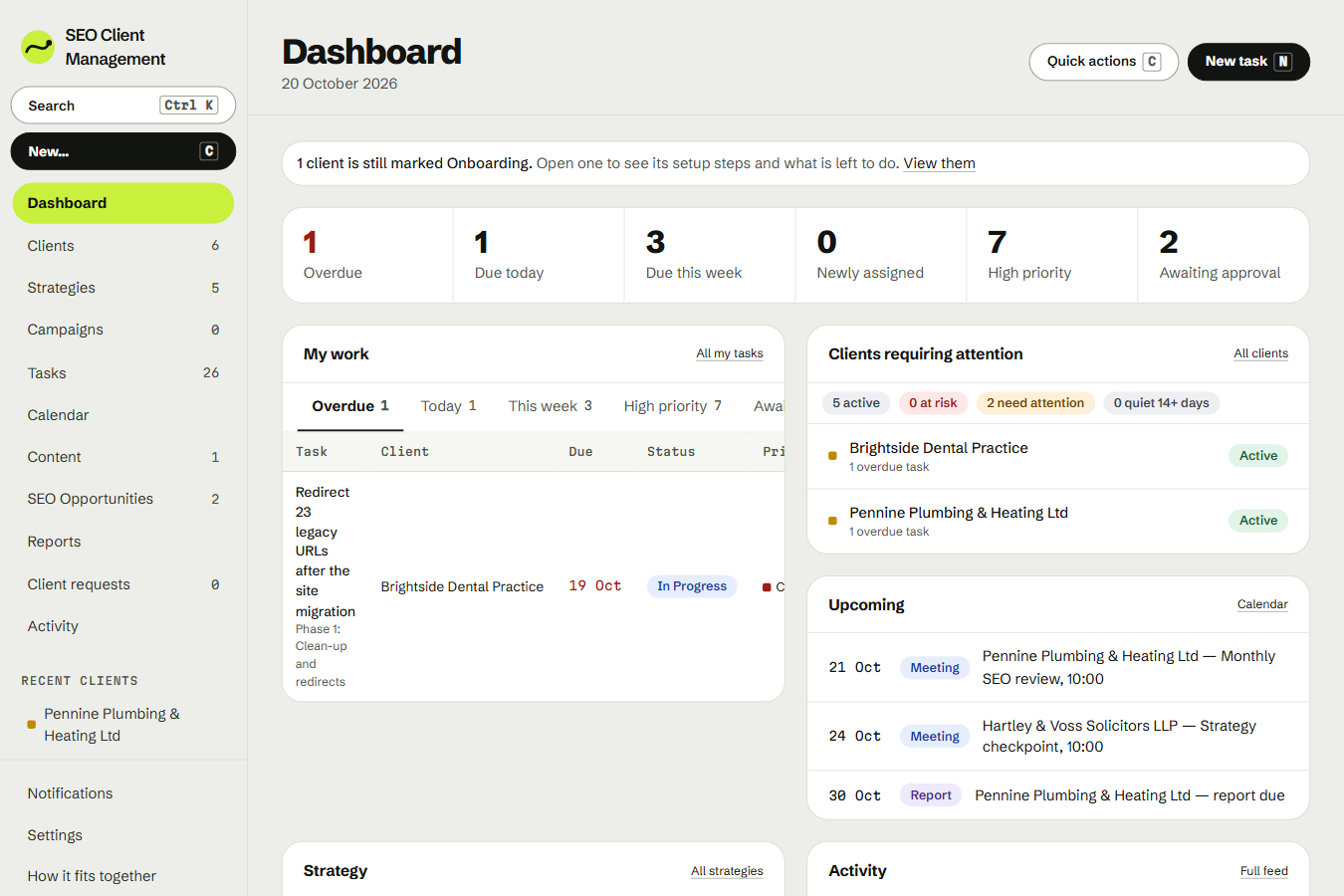
- In wp-admin: the SEO Ops item in the admin menu opens the app inside the WordPress screen.
- Full screen: open
/seo-opson your own site (for exampleyoursite.com/seo-ops) to use the app without the WordPress menu. - For clients: the client portal lives at
/portal. Clients only ever see their own organisation. - Nothing is pre-filled. A new install has no demo clients, tasks or reports, only empty states with a button to add the first one.
The order to work in
- 1Set up a client, then add their website and contacts.
- 2Create a strategy with objectives and workstreams.
- 3Import a crawl or log opportunities, then create tasks from them.
- 4Discuss, attach evidence and request client approval where needed.
- 5Generate the monthly report.
Who can do what
- Administrator: full access.
- SEO Manager: full client, strategy and task access, without system administration.
- SEO Specialist: the clients and tasks assigned to them.
- Developer: technical tasks and the client information they need.
- Client: the client portal only.
Permissions are enforced on the server, not just hidden in the interface, and a client user can never reach another client’s data.
Your first hour
You do not have to configure everything before you start. This order gets you to a useful setup quickly:
- Add a client with the business name, industry and the services you provide. See Setting up a client.
- Add their website and the main market. The strategy, the crawl and the data sources all belong to a website.
- Add contacts and mark who can approve work.
- Create a strategy. If the engagement looks like a technical audit, an informational site, local SEO or an online shop, start from a playbook and edit it.
- Create tasks from the strategy, from a crawl import, from a template or by hand.
The client page shows a Set up this client card until the essentials are done. It says what is next and why, so a new team member can follow it without being taught.
How the parts connect
| Part | What it is |
|---|---|
| Objective | An outcome the client wants, with a target and a date. |
| Workstream | A strand of work that delivers objectives: technical, content, local, links. |
| Campaign | A time-boxed push inside a workstream, with its own tasks. |
| Task | One piece of work. It can have subtasks and dependencies and can be sent for approval. |
| Opportunity | Something you spotted that might become work. Convert the good ones to tasks. |
| Measure | A number you report on, from a data source or entered by hand. |
| Report | A period’s work and measures with a summary. Published reports are frozen. |
Inside the app, How it fits together in the sidebar shows the same map with a diagram.
What the Free plan includes
Free is a working plugin, not a demo: up to 3 active clients and the Screaming Frog import, with the full app, the client portal, approvals and reports. Premium adds AI drafting and the connected data sources and removes the client limit. Compare them on Free vs Premium.
Common questions
Where is the app?
In WordPress, choose SEO Ops in the admin menu. For a full-screen version without the WordPress menu, go to /seo-ops on your site.
Do I have to create a strategy?
No. A strategy is recommended, not required, so a one-off audit can go straight to a crawl import and tasks.
Can my team and my clients use it at the same time?
Yes. Staff use the app, clients use the portal at /portal, and each client only ever sees their own organisation. See Roles and permissions.