
Tracked keywords
Check a client’s keywords every morning, keep the history, and show the client their positions in the portal.
What it does
Daily tracking checks every keyword you track for a client each morning (UK time) and saves one position per keyword per day. That history gives you movement over the last check, the last 7 days and the last 30 days, each keyword’s best position, and a 30-day trend, with no one running anything by hand. It is a Premium feature and builds on Search visibility.
Switch it on
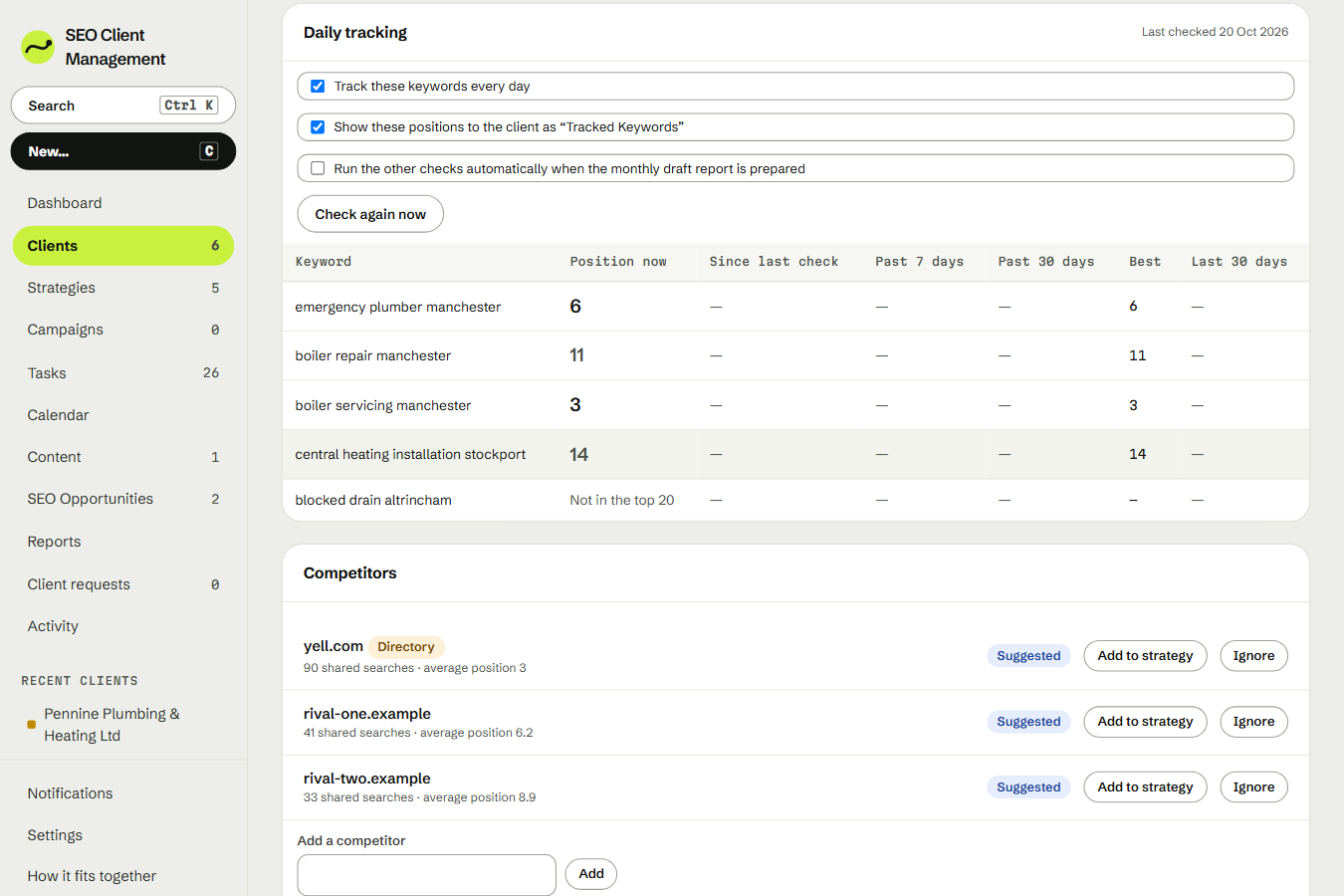
- Open the client’s Search tab and find the Daily tracking card.
- Tick Track these keywords every day.
- Optional: tick Show these positions to the client to publish the portal page described below.
- Optional: tick Run the other checks automatically when the monthly draft report is prepared to run the AI visibility, ranking and competitor checks automatically when the monthly draft report is prepared.
Check now (or Check again now) starts a run straight away instead of waiting for the morning. The card also shows the positions exactly as the client sees them, and any warning.
Limits and pauses
Tracked checks count towards the client’s usage limit. If the limit is reached, tracking pauses, the client’s account owner is notified once a day, and the last good positions stay on show. Raise the limit or wait for the new month and it carries on. A day that only partly completes is saved as partial and the rest is picked up on the next run.
Daily tracking relies on WordPress’s scheduled tasks. On a quiet site, ask your host for a real server schedule or use a free pinging service to keep them running.
What the client sees
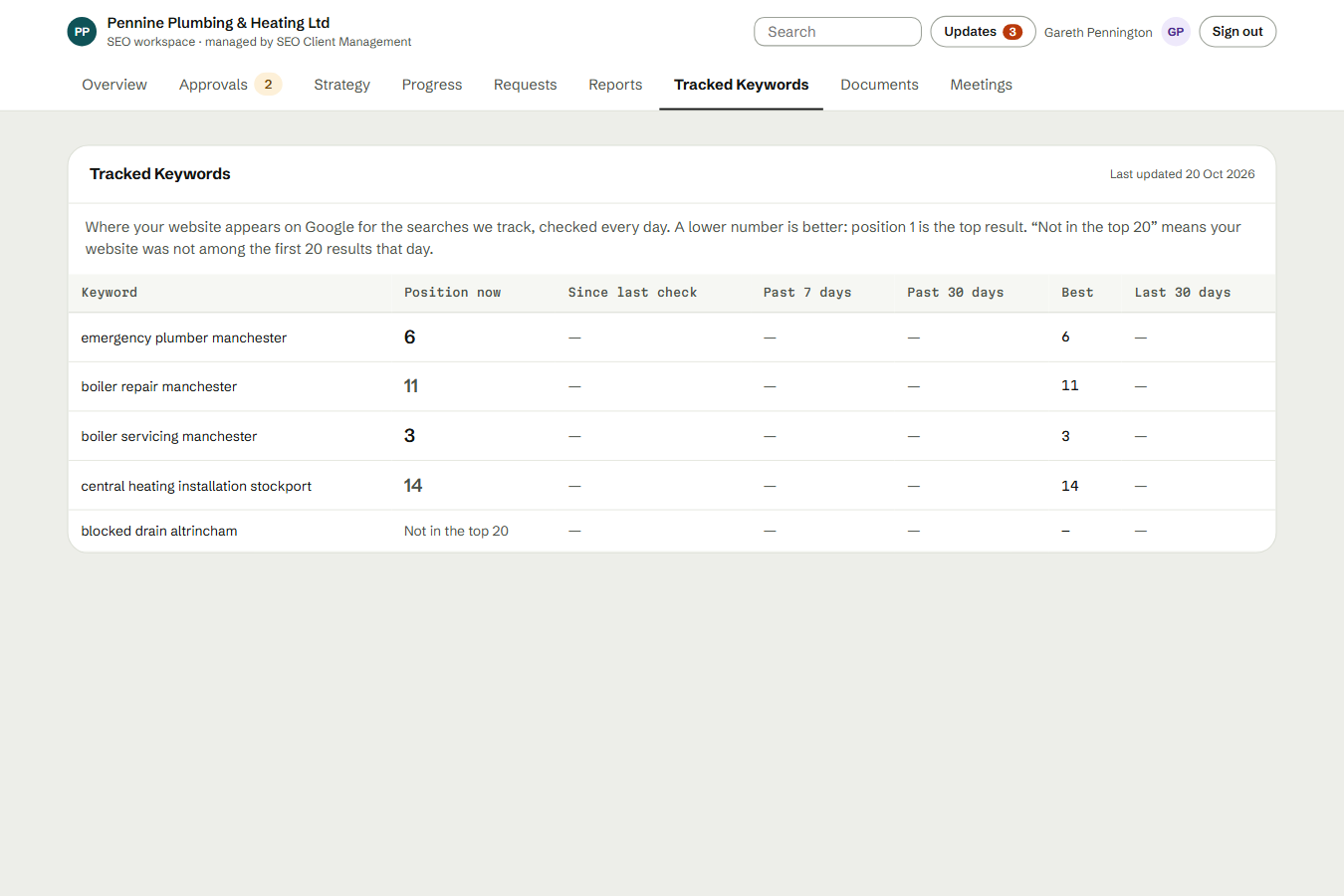
When you tick the Tracked Keywords box, the client portal gains a page called Tracked Keywords. For each keyword it shows:
- the current position on Google;
- how it moved since the last check;
- how it moved over the past 7 and 30 days;
- its best position; and
- a 30-day trend line, with the date it was last updated.
It shows positions only. Competitors, notes and the other checks stay on your side. If you leave the box unticked, the page does not appear in the portal at all. See Setting up the client portal.
In reports
With daily tracking on, the report’s Google section uses the positions on the last day of the period and compares them with the day before the period began, so a monthly report starts from real history instead of one check.
Common questions
How many keywords can I track?
Up to 40 per client.
What if I remove a keyword?
It stops being tracked and disappears from the portal page, but its history is kept. Add it back and it carries on.
Why does a keyword show no position?
The website was not in the top 20 for that search on the day. It is shown as not found rather than guessed.