
Guides · 6 October 2026
How to connect Google Gemini to SEO Ops for AI drafting
Add your Gemini key and model, test it and check its speed.
Plan: Premium. AI drafting is not included in the Free plugin. See pricing.
SEO Ops can use Google Gemini to draft tasks, summaries and report text. AI is optional: without a provider, everything else works and the AI actions are simply not offered. This guide covers the setup.
Before you start
- You need a Google account with a Gemini API key. You use your own key, so you choose the model and control the cost.
- You need to be able to manage integrations in SEO Ops.
Step 1: Create an API key
In Google AI Studio, create a Gemini API key and copy it. Treat it like a password.
Step 2: Add it to SEO Ops
- Go to Settings › Integrations and find AI providers.
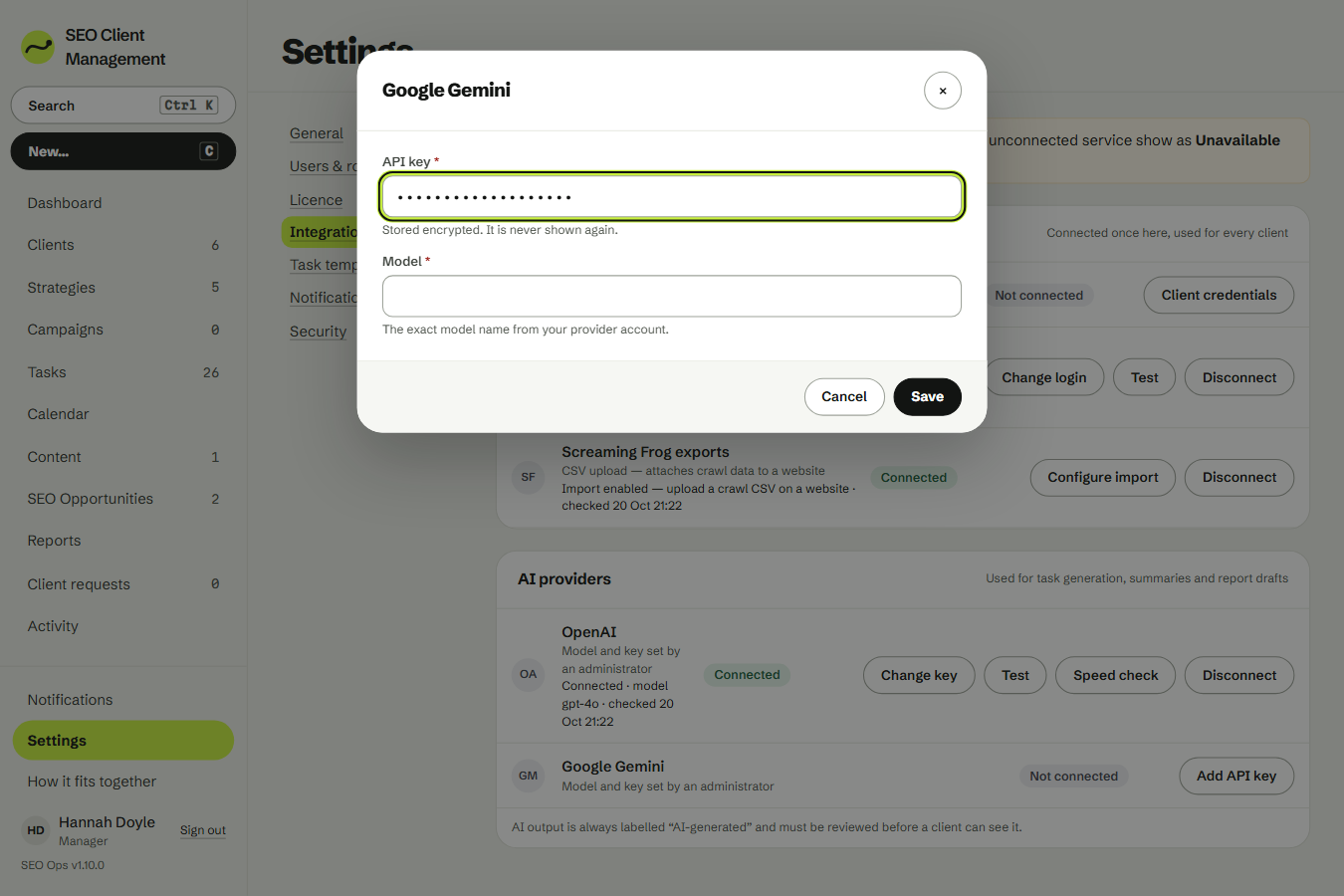
- On the Google Gemini card, choose Add API key.
- Paste the API key.
- Enter the Model. This must be the exact model name from Google, so copy it from Google’s list of Gemini models.
- Choose Save. The key is stored encrypted and never shown again, apart from its last four characters.
Step 3: Test it, then check the speed
- Choose Test. SEO Ops checks that Google accepts the key and recognises the model.
- Choose Speed check. It sends a tiny request and reports how long the model took. If it takes more than about 15 seconds, SEO Ops warns you that drafting will be slow and suggests trying a faster model.
SEO Ops waits up to 45 seconds for a draft before giving up.
Using it day to day
Gemini powers the same AI actions as OpenAI: generating tasks from a strategy, breaking a task into subtasks, analysing an opportunity, suggesting tasks from meeting notes, summarising a strategy or a discussion, drafting strategy sections and drafting a report summary. All output is labelled AI-generated and must be reviewed by a person before a client can see it.
If something goes wrong
- Google rejects the key: check you copied the whole key and that the Gemini API is enabled for it.
- The model is not found: the name must match Google’s exactly.
- A draft times out: choose a faster model and run the speed check again.
- Keys will not save: see the integrations overview.
Only one AI provider is used at a time: the one you saved most recently becomes the active one. To switch back to OpenAI, save its key and model again. See how to connect OpenAI.